DyneBridge

Browser Extension for DynePass

Your Saved Logins, Right in Your Browser

Scan a QR code with the DynePass Android app and DyneBridge fills your username and password into the page you're logging into — over your own Wi-Fi, end-to-end encrypted.

Two parts, both needed: the DyneBridge extension in your browser, and the small DyneBridge Helper app on the same computer (Windows, Ubuntu, Fedora). Get the DyneBridge Helper ↓

  • End-to-End Encrypted
  • Local Network Only
  • No Servers, No Tracking
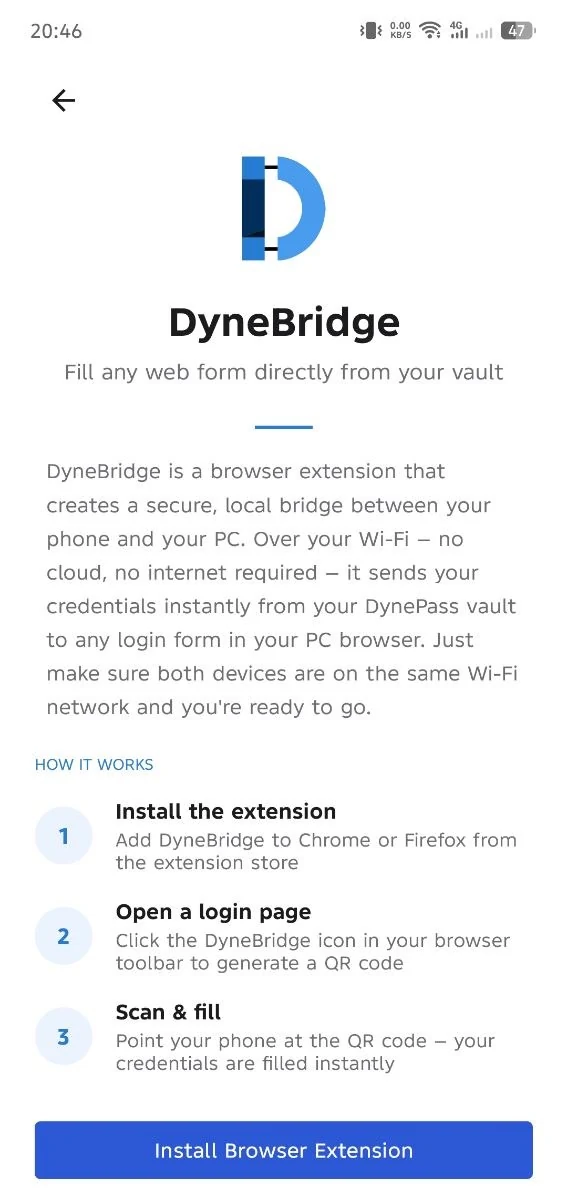
DyneBridge screen in the DynePass app, with the steps to install the extension and scan
AES-256
GCM Encryption
P-256
ECDH Key Exchange
Zero
Servers Involved
100%
Local Wi-Fi Only

How DyneBridge Works

Every credential transfer starts with you, and stays on your own network

1

Open the Extension

On the site you're logging into, click the DyneBridge icon in your browser to bring up a QR code.

2

Scan With DynePass

Scan the QR code with the DynePass Android app. This bootstraps a secure key exchange only your phone and browser can see.

3

Encrypted Over Wi-Fi

Your credentials are encrypted on your phone and sent over your own local Wi-Fi network — never over the internet.

4

Autofilled Instantly

DyneBridge decrypts your credentials locally and fills them straight into the login form.

Built to Never Touch a Server

DyneBridge's entire design exists to move one thing — your login credentials — from your phone to your browser, and nothing else

End-to-End Encryption

Credentials are encrypted on your phone with AES-256-GCM, using a key derived from an ECDH (P-256) exchange bootstrapped by the QR scan. Only the extension can decrypt them.

Local Network Only

All communication happens over your own Wi-Fi, between your phone and your computer. Credentials are never sent to DyneBridge, to us, or to any third party over the internet.

Crypto-Blind Helper

The DyneBridge Helper, a small program on your own computer, passes messages between your phone and browser, because an extension can't accept network connections itself. Your browser starts it only while you pair, and it only ever sees ciphertext.

Replay & Tamper Protection

Every credential message carries a sequence number and timestamp, and your phone's identity is authenticated during the handshake so another device on the network can't inject or intercept data.

Session-Only Storage

The extension keeps the most recently received credentials in short-lived, session-only storage, cleared automatically after a few minutes or when the browser session ends.

You're Always in Control

Nothing happens automatically or in the background. Every transfer is initiated by you, by opening the extension and scanning a QR code.

Why DyneBridge Asks for These Permissions

Every permission maps to exactly one feature — nothing more

Chrome shows these as "Read and change all your data on all websites", so DyneBridge can fill the login form on whichever site you're on, and "Communicate with cooperating native applications", so it can start the DyneBridge Helper on your computer.

Active tab access

To detect which website you're on and fill the login form on that page.

Content script on every page

Loads on every site so it's ready wherever you choose to fill credentials, but stays completely passive until it receives a message triggered by your own QR scan.

Native messaging

To start and talk to the DyneBridge Helper on your own computer, which forwards encrypted messages to and from the DynePass app. It doesn't give the extension access to any website or network address.

Storage

To keep the short-lived, session-only credential cache described above.

Full details are in the DyneBridge Privacy Policy.

Frequently Asked Questions

No. Every credential transfer happens over your own local Wi-Fi network, directly between your phone and your computer. Nothing is sent to DyneBridge, to any server we operate, or to any third party over the internet.
A browser extension can't accept a connection from your phone, so the DyneBridge Helper, a small program on your own computer, does that part and forwards encrypted messages between your phone and the extension. Your browser starts it when you open DyneBridge and it stops when the transfer is done. It only ever sees ciphertext — it doesn't parse, store, or log message contents. Download the DyneBridge Helper.
DyneBridge 1.1 replaces the relay you started yourself with the DyneBridge Helper, which your browser starts and stops on its own. Install the DyneBridge Helper once, and you no longer need to run the old relay or Node.js for DyneBridge. Your browser may ask you to approve the extension's new permission when it updates.
DyneBridge keeps the most recently received credentials in short-lived, session-only browser storage — cleared automatically after a few minutes or when the browser session ends — purely so you don't have to rescan the QR code if you reopen the popup right away. Nothing is stored remotely.
The extension can't know in advance which site you'll want to fill credentials into, so the script loads everywhere but stays completely passive. It doesn't read or collect anything, and only activates in response to an autofill message sent as a direct result of your own QR scan.
Yes. DyneBridge is the browser side of DynePass's credential transfer feature — it works together with the DynePass Android app, which holds your encrypted vault and sends credentials to the browser only when you scan the QR code. DyneBridge is a DynePass Premium feature.

Get DyneBridge

Two parts, installed once: the extension in your browser, and the small DyneBridge Helper on the same computer. DyneBridge needs DynePass Premium in the Android app.

1Add the extension

Chrome asks for two permissions when you add it (why), and may show an Enhanced Safe Browsing caution, which it shows for extensions from publishers new to the Chrome Web Store.

2Get the DyneBridge Helper

Windows, Ubuntu, Fedora. Without it, the extension shows Helper missing.

Download the DyneBridge Helper

Want to know how your data is handled first?